Safe Mac Sites to Download Os X Forum
Safely open apps on your Mac
macOS includes a applied science called Gatekeeper, that'south designed to ensure that only trusted software runs on your Mac.
The safest place to go apps for your Mac is theApp Store. Apple tree reviews each app in the App Store earlier information technology's accepted and signs it to ensure that it hasn't been tampered with or altered. If there'southward ever a trouble with an app, Apple tin chop-chop remove it from the store.
If y'all download and install apps from the internet or direct from a developer, macOS continues to protect your Mac. When you install Mac apps, plug-ins, and installer packages from outside the App Store, macOS checks the Developer ID signature to verify that the software is from an identified developer and that it has not been altered. By default, macOS Catalina and later too requires software to be notarized, so you can be confident that the software you run on your Mac doesn't contain known malware. Before opening downloaded software for the first time, macOS requests your approval to brand sure you lot aren't misled into running software yous didn't expect.

Running software that hasn't been signed and notarized may betrayal your figurer and personal information to malware that can harm your Mac or compromise your privacy.
The alert messages displayed beneath are examples, and it's possible that you could see a similar message that isn't displayed here. Please employ caution if y'all cull to install any software for which your Mac displays an alert.
View the app security settings on your Mac
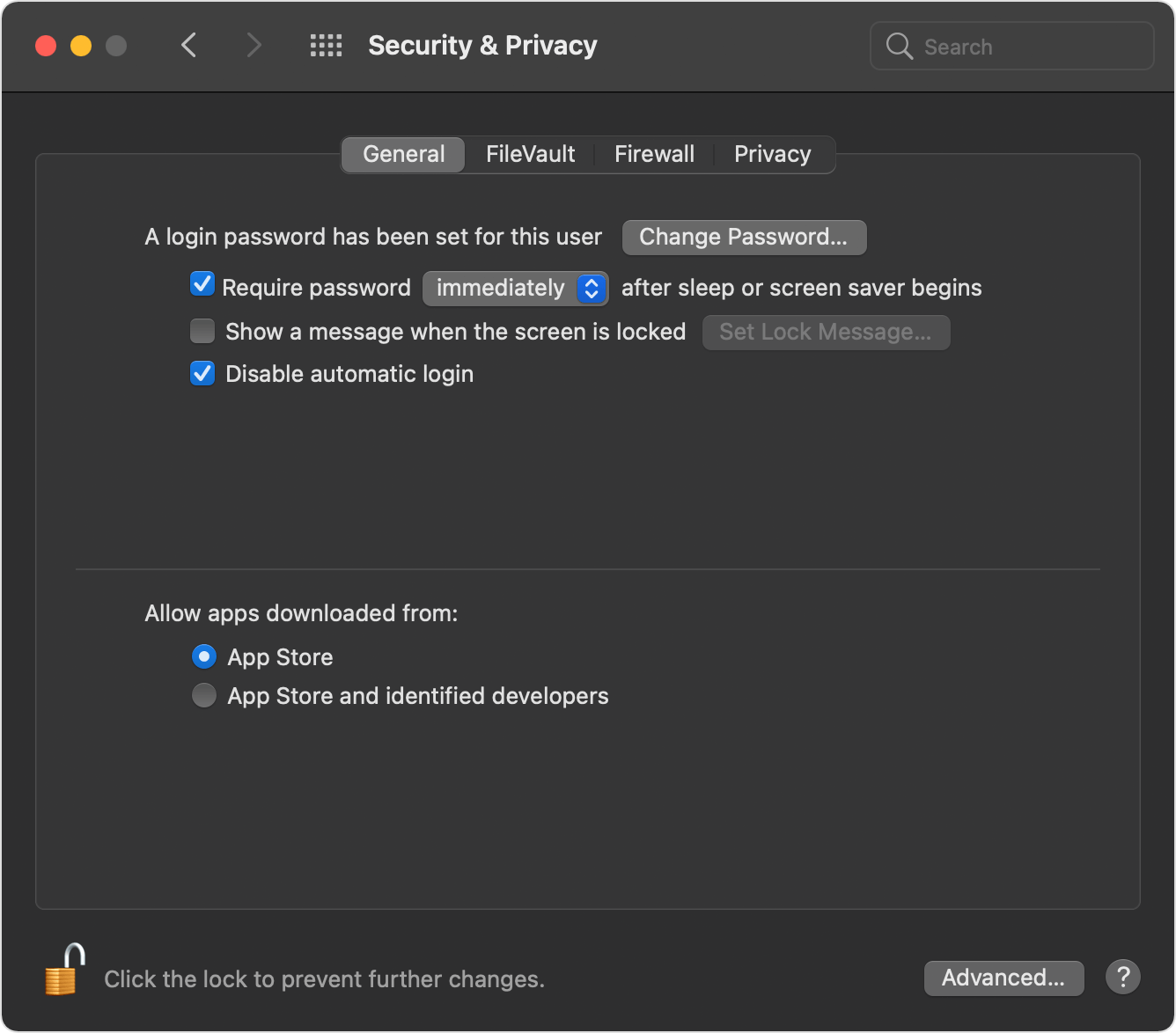
By default, the security and privacy preferences of your Mac are set to allow apps from the App Shop and identified developers. For additional security, you can chose to allow only apps from the App Store.
In Organisation Preferences, click Security & Privacy, and so click General. Click the lock and enter your password to make changes. Select App Shop under the header "Allow apps downloaded from."
Open a programmer-signed or notarized app
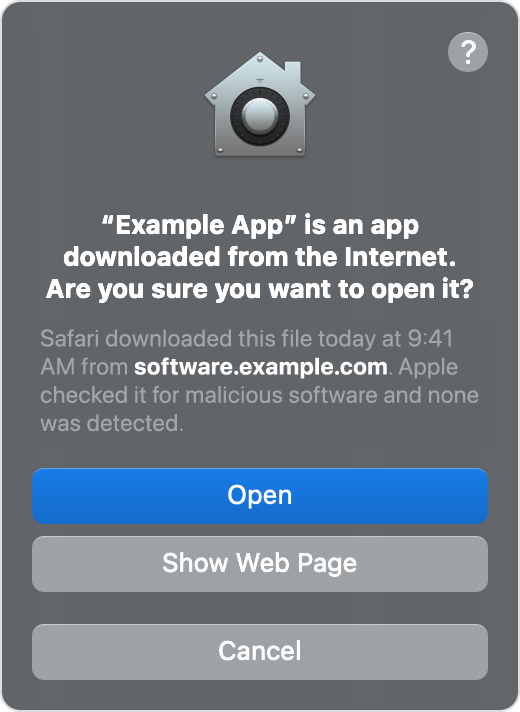
If your Mac is set to permit apps from the App Store and identified developers, the first time that you launch a new app, your Mac asks if you're certain yous want to open it.
An app that has been notarized by Apple tree indicates that Apple checked it for malicious software and none was detected.
If you see a warning message and tin can't install an app
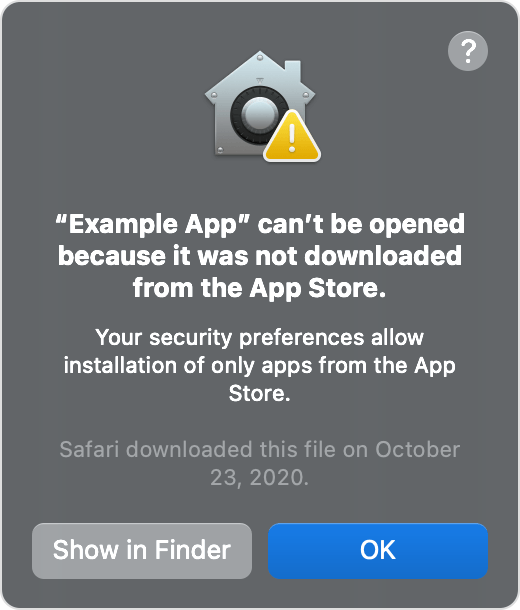
If you have gear up your Mac to permit apps only from the App Store and you try to install an app from elsewhere, your Mac volition say that the app can't be opened because it was not downloaded from the App Store.*
If your Mac is set to permit apps from the App Store and identified developers, and you try to install an app that isn't signed past an identified developer and—in macOS Catalina and later—notarized by Apple tree, you too see a warning that the app cannot be opened.
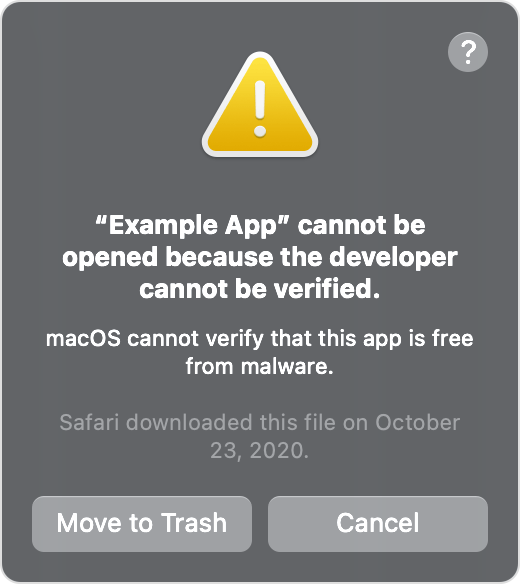
If you lot run across this alert, it means that the app was non notarized, and Apple tree could not browse the app for known malicious software.
Yous may want to look for an updated version of the app in the App Shop or look for an alternative app.
If macOS detects a malicious app
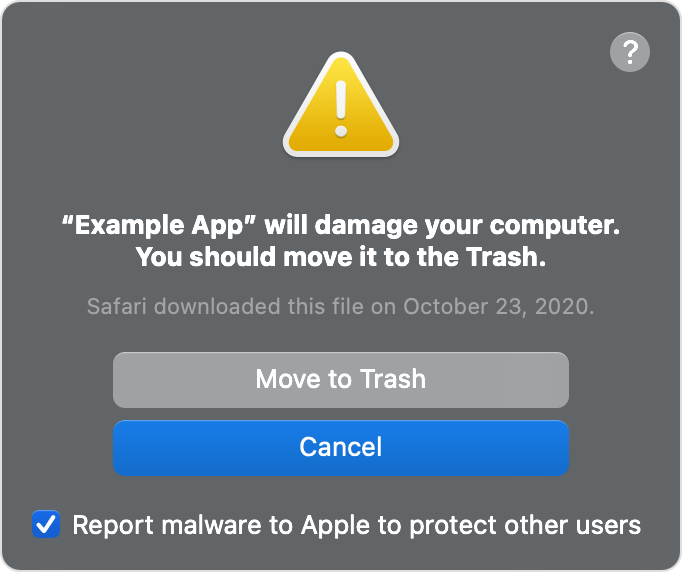
If macOS detects that software has malicious content or its authorization has been revoked for any reason, your Mac will notify you that the app will damage your computer. You should movement this app to the Trash and check "Report malware to Apple tree to protect other users."
If you want to open an app that hasn't been notarized or is from an unidentified developer
Running software that hasn't been signed and notarized may expose your estimator and personal information to malware that can impairment your Mac or compromise your privacy. If you're sure that an app you desire to install is from a trustworthy source and hasn't been tampered with, you can temporarily override your Mac security settings to open it.
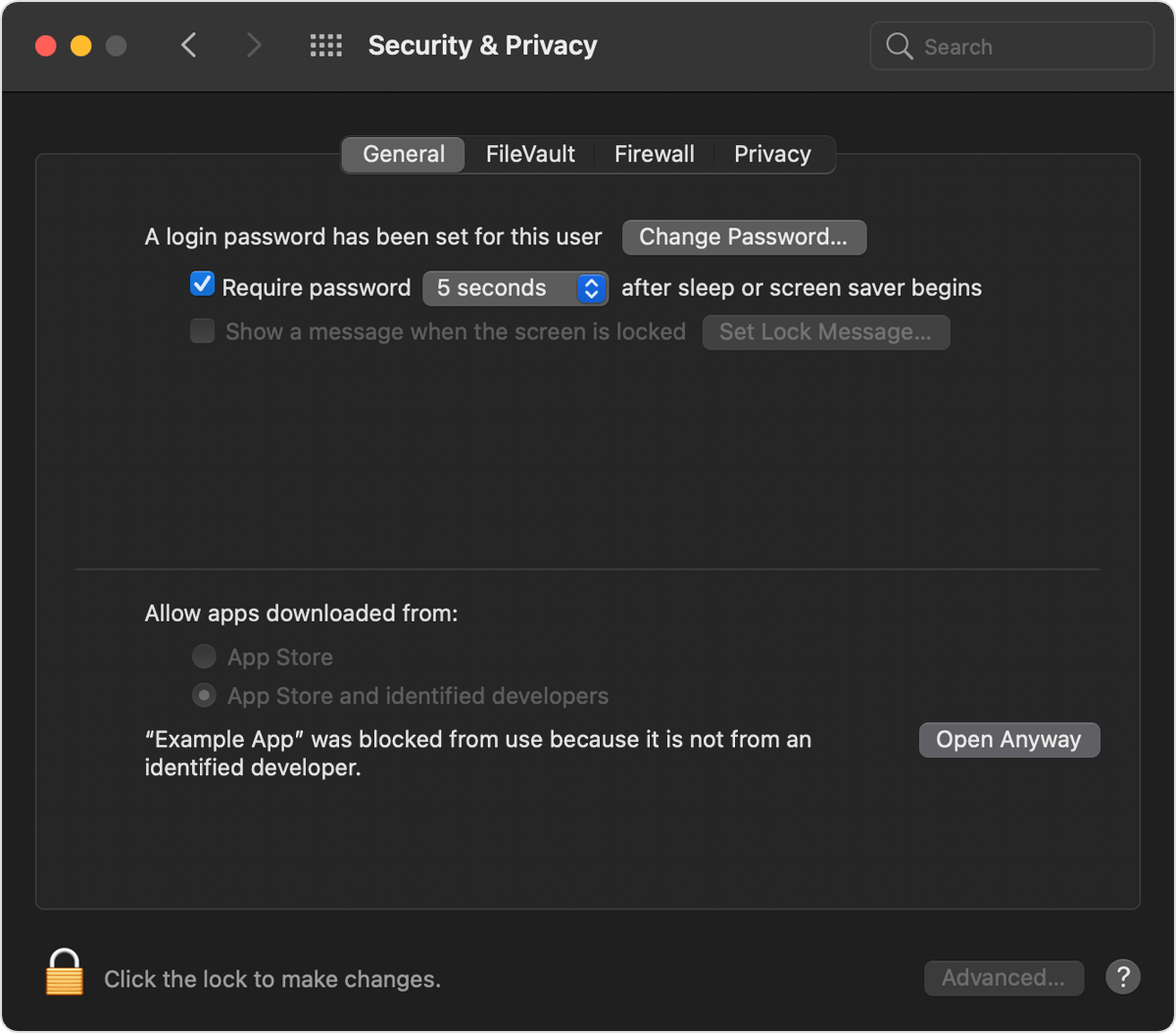
If you still want to open an app for which the developer cannot be verified, open System Preferences.*
Go to Security & Privacy. Click the Open Anyway push in the General pane to ostend your intent to open or install the app.
The warning prompt reappears, and if you lot're absolutely sure y'all want to open up the app anyway, y'all can click Open.
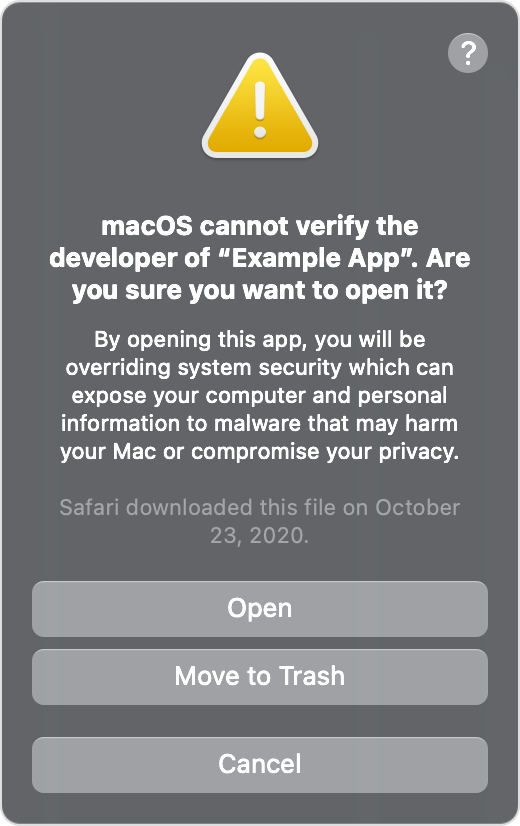
The app is now saved as an exception to your security settings, and you tin can open up information technology in the hereafter past double-clicking it, just equally you tin can whatever authorized app.
Privacy protections
macOS has been designed to keep users and their information safe while respecting their privacy.
Gatekeeper performs online checks to verify if an app contains known malware and whether the developer's signing certificate is revoked. Nosotros have never combined data from these checks with information well-nigh Apple users or their devices. Nosotros practise not use data from these checks to learn what individual users are launching or running on their devices.
Notarization checks if the app contains known malware using an encrypted connexion that is resilient to server failures.
These security checks have never included the user's Apple tree ID or the identity of their device. To further protect privacy, nosotros have stopped logging IP addresses associated with Developer ID certificate checks, and we will ensure that any nerveless IP addresses are removed from logs.
In add-on, over the the next twelvemonth we volition innovate several changes to our security checks:
- A new encrypted protocol for Developer ID certificate revocation checks
- Strong protections against server failure
- A new preference for users to opt out of these security protections
* If you're prompted to open the app in Finder and you lot're certain you want to open up information technology despite the alert, you tin can control-click the app, cull Open from the menu, then click Open in the dialog that appears. Enter your admin proper name and password to open up the app.
Information near products not manufactured by Apple, or contained websites not controlled or tested by Apple, is provided without recommendation or endorsement. Apple assumes no responsibleness with regard to the selection, performance, or use of 3rd-political party websites or products. Apple makes no representations regarding tertiary-party website accuracy or reliability. Contact the vendor for additional information.
Published Engagement:
Safe Mac Sites to Download Os X Forum
Posted by: hillfortaged.blogspot.com
Post a Comment