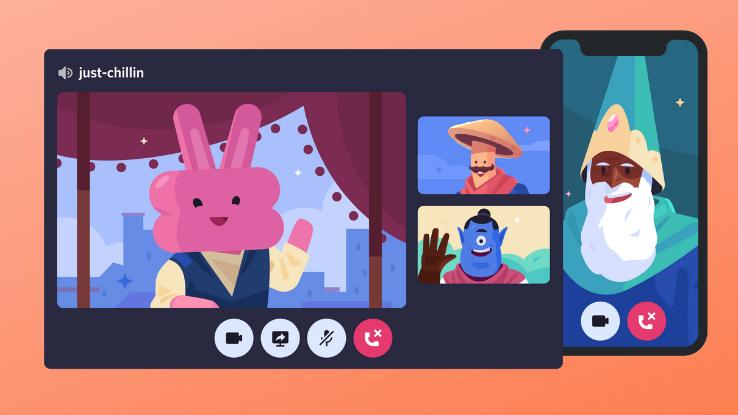
Downloading video files from the Discord app is intuitive, eliminating the need for 3rd-party apps. And, with Discord'south upload file limit size of 8 megabytes for videos, pictures and other files, your download shouldn't take more than a few seconds. Best of all, uploading videos and other files on Discord is as elementary as downloading them, making the platform bang-up for collaborating and sharing content with friends. Need some tips and tricks? Nosotros'll give you lot a rundown on how to download videos from Discord and teach y'all everything you need to know about uploading files larger than 8MB.
What Is the Discord App?
At its core, Discord is a messaging app, i that allows users to communicate with others via video, text and voice calls. The app is especially pop with gamers, namely because information technology allows for both text and phonation messaging while they're playing on Steam or other popular computer gaming platforms. Without a doubt, its stability and reliability as a vocalisation chatting platform, set up it autonomously, regardless if you're a gamer or not. In 2017, Discord implemented a video conversation option and made screen sharing available to its users.
Fifty-fifty when gamers aren't playing, Discord is the perfect platform for chatting, forming fandoms and sharing content. Apart from gamers, other groups who share mutual interests, from folks who are interested in stock trading to fantasy football fanatics, spend fourth dimension on Discord. Its near notable surge in popularity, yet, tin be attributed to gaming communities who utilized Discord to communicate while playing big-proper noun, team-based games like Fortnite Battle Royale and Overwatch.
Downloading and using Discord is easy. The app is complimentary and available to estimator and smartphone users who are at least thirteen years of age. Additionally, Discord is compatible with Windows, Mac, Android, iOS and Linux, and can exist accessed via an app or web browser.
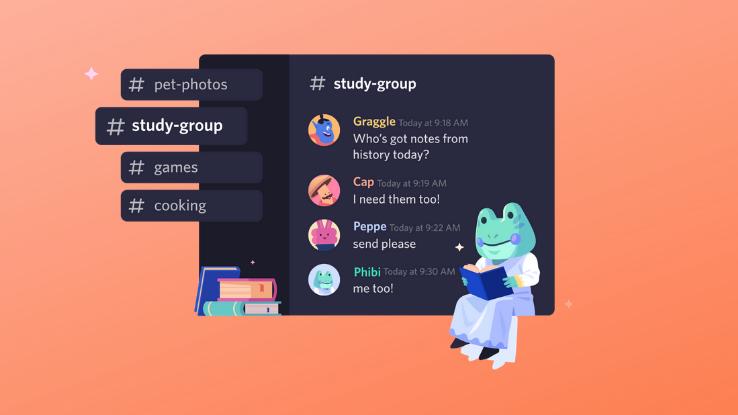
To start using discord, visit the app'southward official website and download it. As with nigh other apps, you'll need to provide some personal details, including a valid electronic mail address and phone number. You'll besides need to assign yourself a unique username. During the registration and installation procedure, the app should be able to discover your microphone and camera automatically. If the app doesn't pick upwards your camera and/or microphone, you can make adjustments later you've signed in.
Once you're done registering and signing in, you lot'll find that the homepage is easy to navigate — and it comes complete with self-guided tutorials. Looking for quick tips about the app's many features? Click the orange exclamation points. In one case you're comfy with the layout, y'all can start joining conversation rooms ― or, in Discord speak, "servers" ― or create your ain.
Downloading and Uploading Videos on Discord
Discord only allows users to upload up to 8MB size videos to share on their servers. While this size is but enough for a short high-definition (HD) video prune (or a slightly longer standard quality video), it is big enough for near photos. To download a video (or any file) that'southward uploaded on a server, right-click on the file and select download. The file will exist downloaded automatically to your device's default download location. If yous're using the mobile app, click on the arrow on the upper correct-paw corner to initiate the download.
Uploading a video is even easier. If you're certain that your video clip is beneath the 8MB limit, you tin click on information technology and drag it into the app. Discord will pick it up automatically and prompt you lot to upload it. Alternatively, you can click on the upload box at the bottom of the window, next to the conversation bar. This will open up your file manager. Select the video file that you want to share and click on "Upload."
Additionally, there are two ways to upload video files larger than 8MB. Option A: Sign up for Discord Nitro. For $9.99 per month (or $99.99 a year), you can upload files that are as large every bit 50MB of data at any time. Autonomously from the upgraded upload limit, Nitro besides allows you to boost your server, use animated GIFs, broadcast better livestreams and create a customized Discord tag.
Looking for another way to circumvent the upload limit? Option B: Upload your video onto your cloud storage or any video file-hosting site. Copy the link to your video and share that link to your server. Users who want to download your video can then follow the downloading process of the file-hosting service.
DOWNLOAD HERE
Posted by: hillfortaged.blogspot.com
Post a Comment